You can add warehouse where you keep the goods. You can choose a warehouse to export (sell) or receive (purchase) goods. You can also move inventory between warehouses.

Add New Warehouse

To add a new warehouse to your organization:

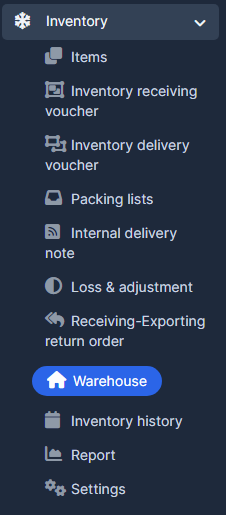
  • Step 1. Go to Warehouse menu under Inventory module from the left sidebar.
download (39)

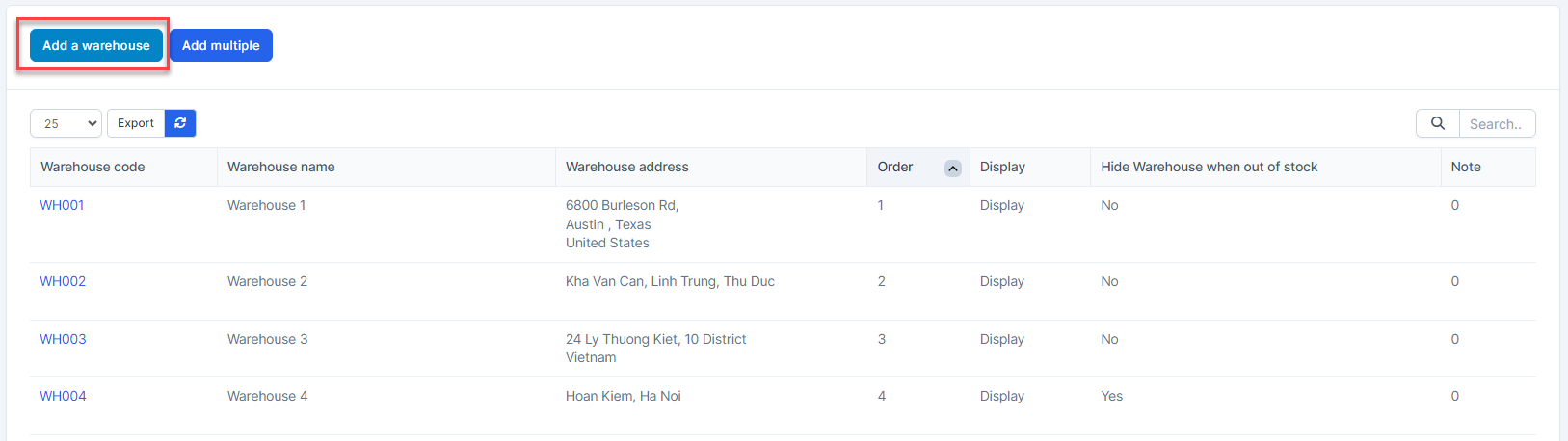
Step 2. Click on the Add a warehouse button on the top.

download (40)

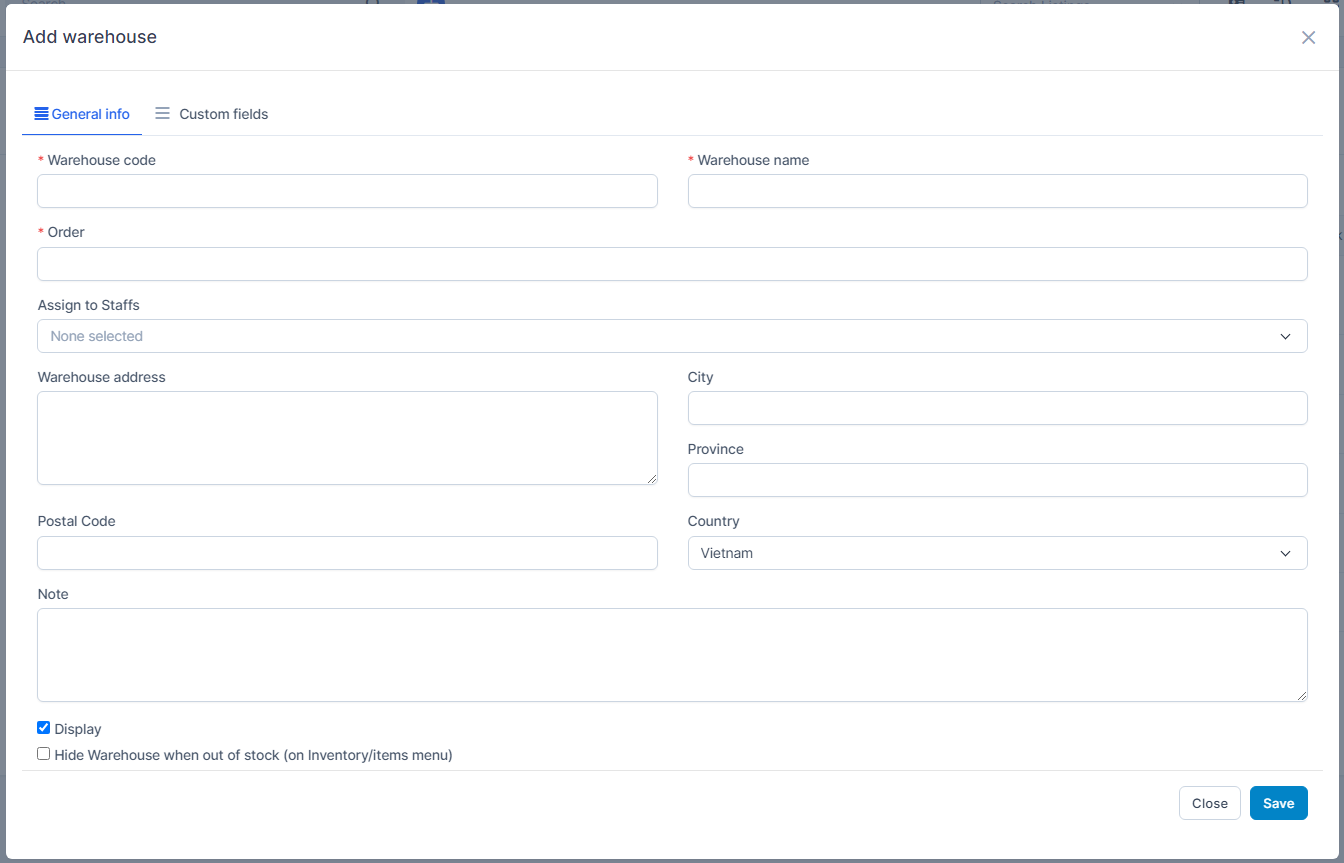
Step 3. In the Add warehouse page, fill the following details: 

download (41)
  1. Enter the Warehouse code.
  2. Enter the Warehouse name.
  3. Enter the Order: the order this Warehouse will show up in the Inventory combo box on the related screens. It is similar to A-Z.
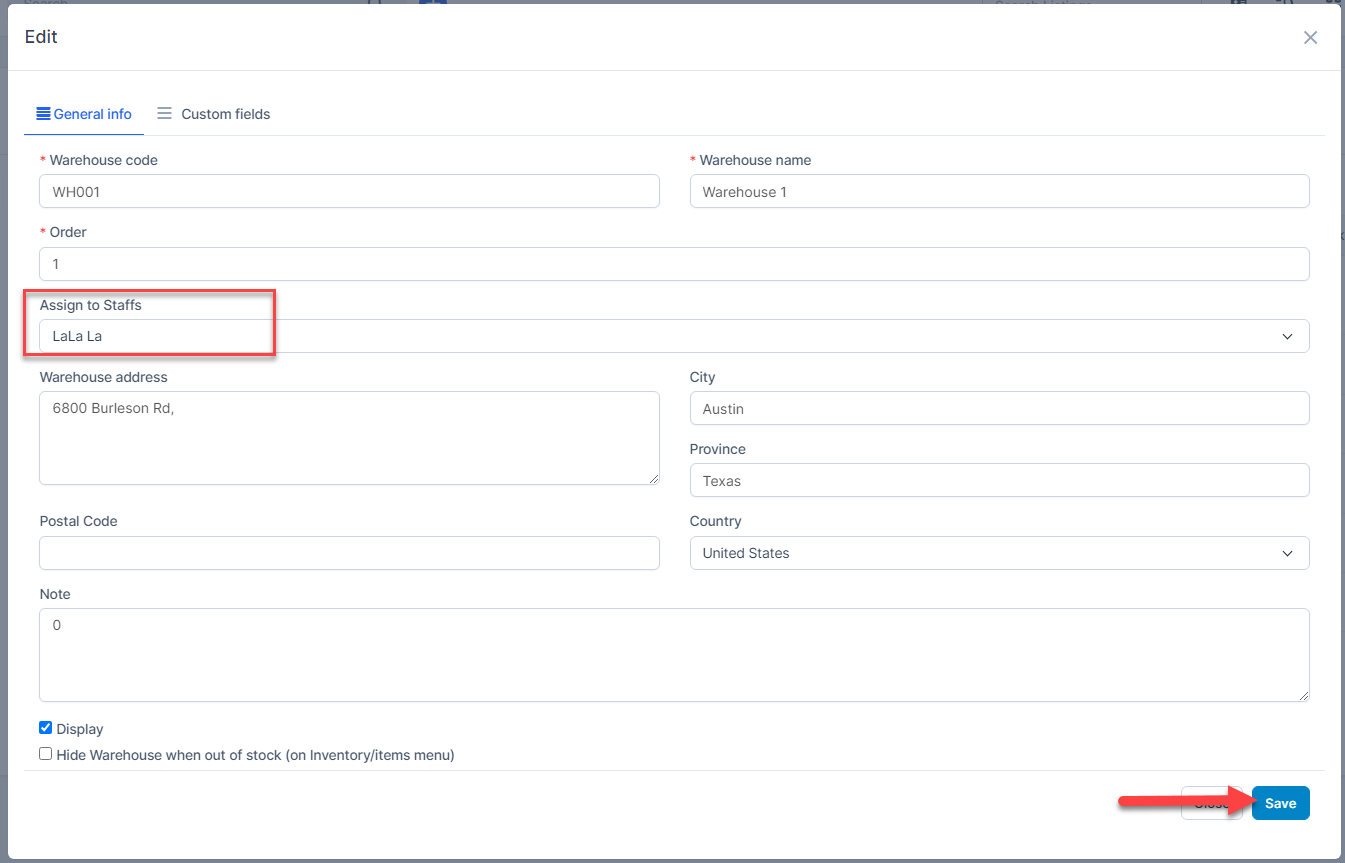
  4. Assign to Staffs: 

    Admin will assign the warehouse to the employee.Employees only manage the inventory  assigned warehouses, create inventory receiving voucher, inventory delivery voucher, internal delivery notes, and loss & adjustment for assigned warehouses.

download (1)
  1. Enter the Warehouse address, City, Province, Postal Code, and Country.
  2. Enter the Note.
  3. Check/uncheck the Display option. If you check this option, this warehouse will be displayed in the Warehouse combo box. Opposite, this warehouse will not be displayed.
  4. Check/uncheck Hide Warehouse when out of stock (on Inventory/items menu) option. If you check, hide out-of-stock warehouse on the Items management page. 
  5. Custom fields tab: Alway empty in Add form. The warehouse custom field is only visible in the Edit screen and displays the custom fields assigned to the warehouse itself. 
  6.  
  • Step 4. Click Save button 

Add custom field for warehouse and assign warehouse to staff

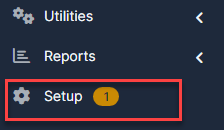
  • Step 1. Go to Setups menu
download (2)

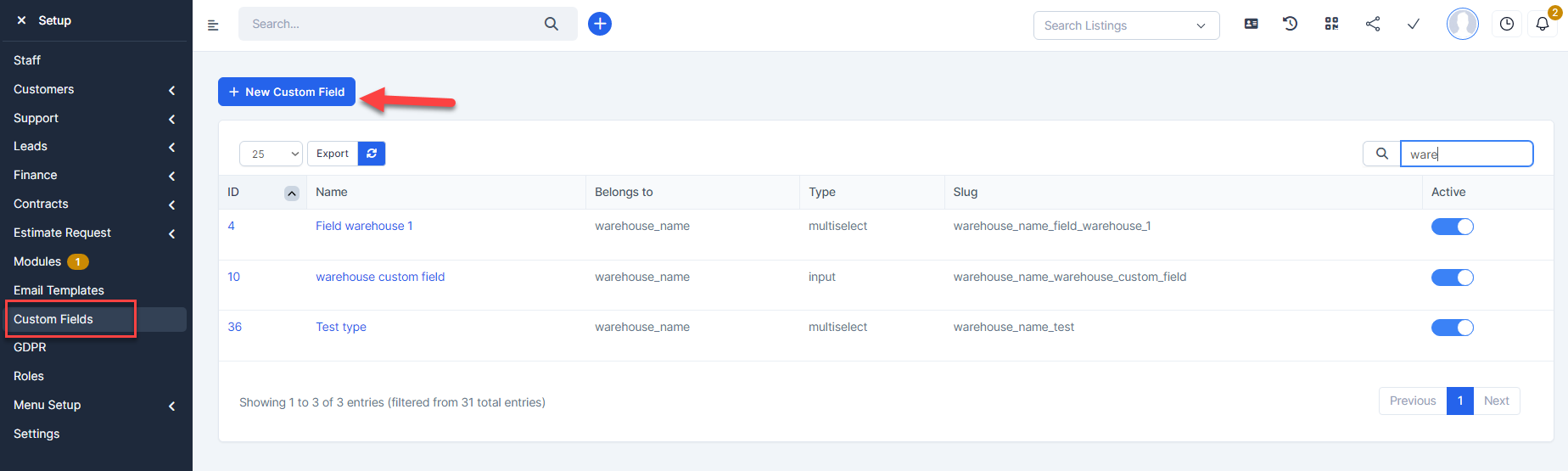
Step 2. Select Custom Fields menu -> Click on the New Custom Field button.

download (3)

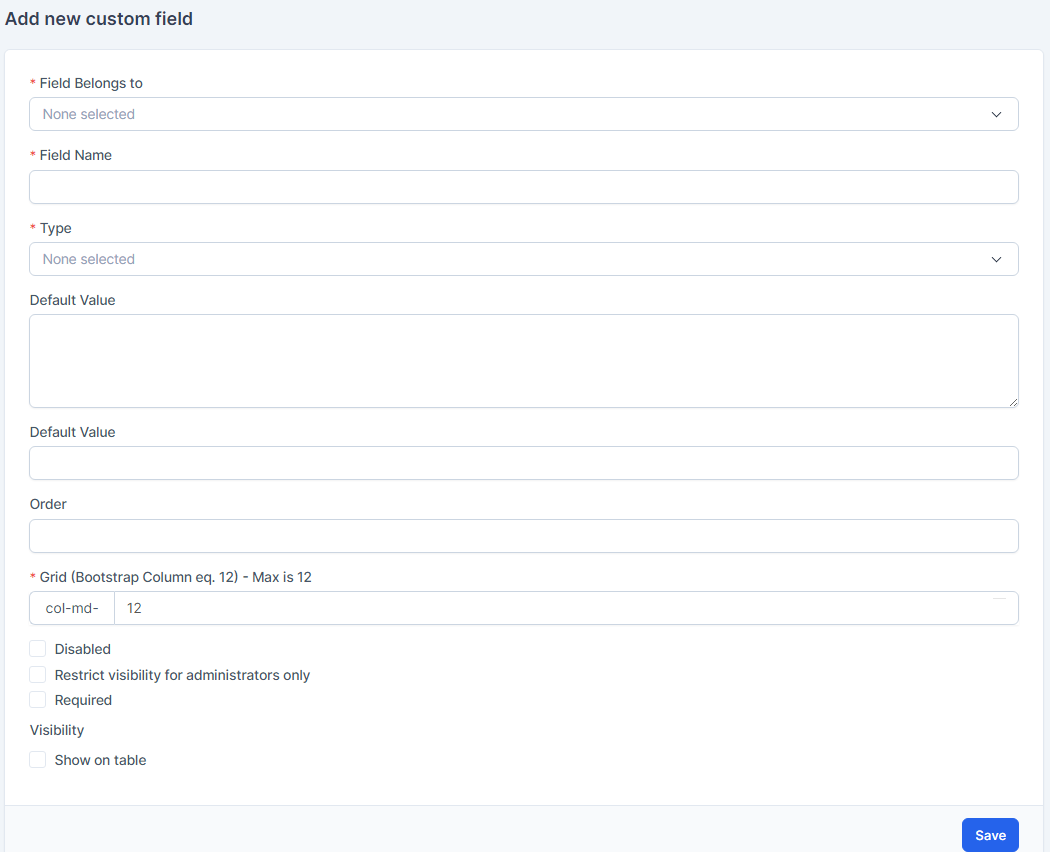
Step 3. In the Add new custom field page, fill the following details:

download (4)
  1. Select Belongs to is Warehouse.
  2. Enter the Field Name.
  3. Select Type
  4. Enter Default Value
  5. Enter Order 
  • Step 4. Go to Settings menu under Inventory module from the left sidebar
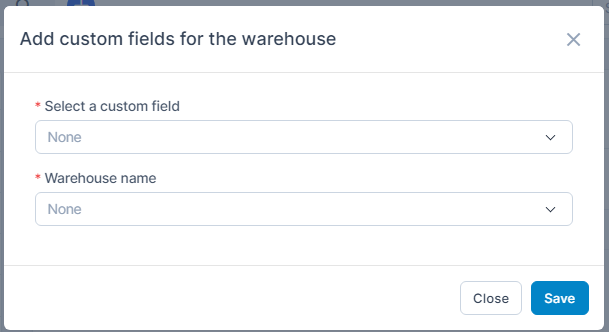
  • Step 5. Select Warehouse custom fields menu -> assign necessary custom fields for warehouse
download (5)
  • Select a custom field: choose the custom field you want to assign to a specific warehouse. These custom fields are predefined in the system under Settings > Warehouse custom fields.
  • Warehouse name: Select the warehouse you want to assign the selected custom field to. The dropdown shows all active warehouses in the system.
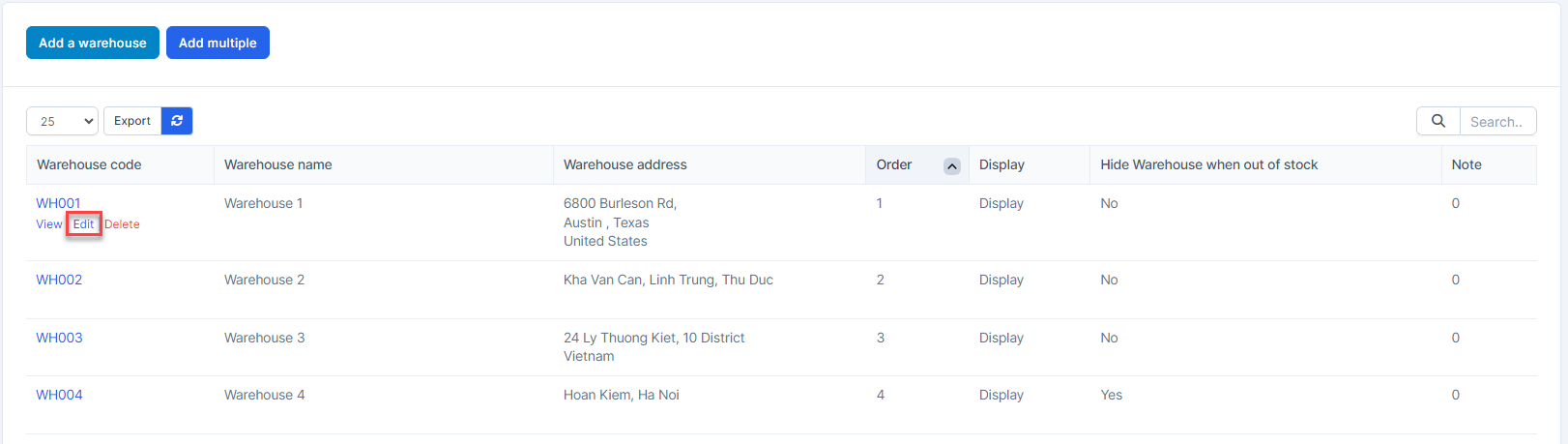
  • Step 6. Go to Warehouse menu under Inventory module from the left sidebar.
  • Step 7. Hover over the warehouse to be edited and click Edit
download (6)

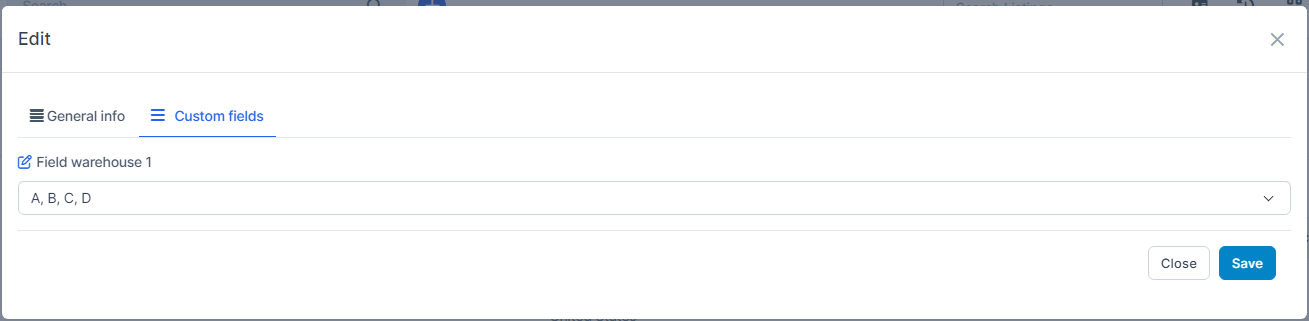
Step 8. Go to custom fields tab, the custom fields assigned in step 2 will show up here. 

download (7)
  • Step 9. Click Save

Delete warehouse


If a warehouse is no longer operational, you can delete it. To delete a warehouse:

  • Step 1. Go to Warehouse menu under Inventory module from the left sidebar.
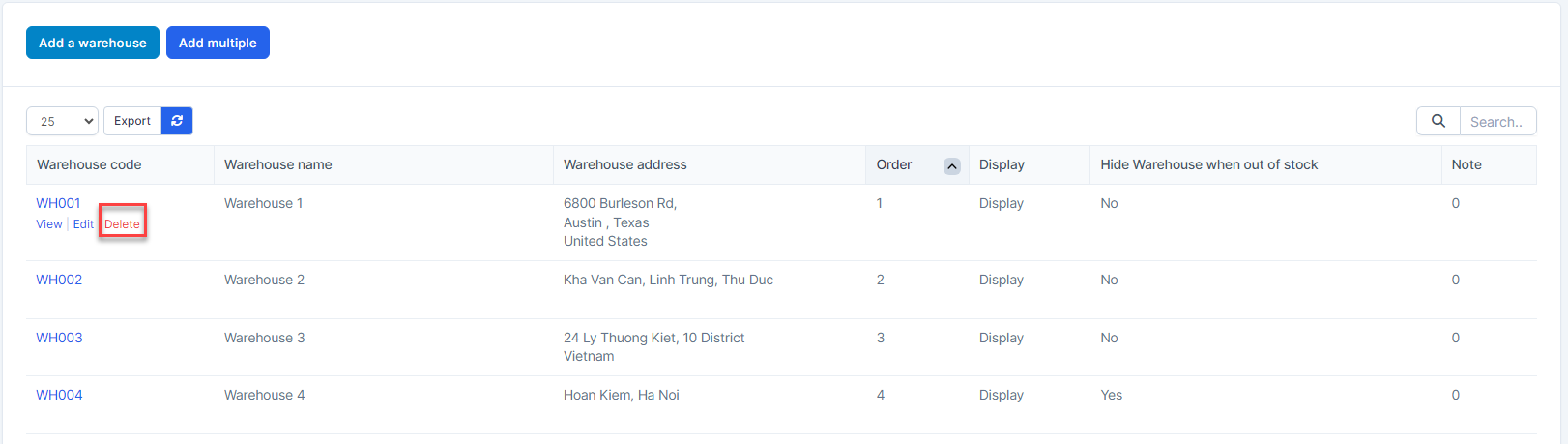
  • Step 2. Hover over the warehouse to be deleted and click Delete
download (8)

Step 3. Confirm your selection in the following pop-up. The warehouse will be deleted.

download (9)

Warehouse Detail

To view the details of an existing warehouse:

  • Step 1. Go to Warehouse menu under Inventory module from the left sidebar.
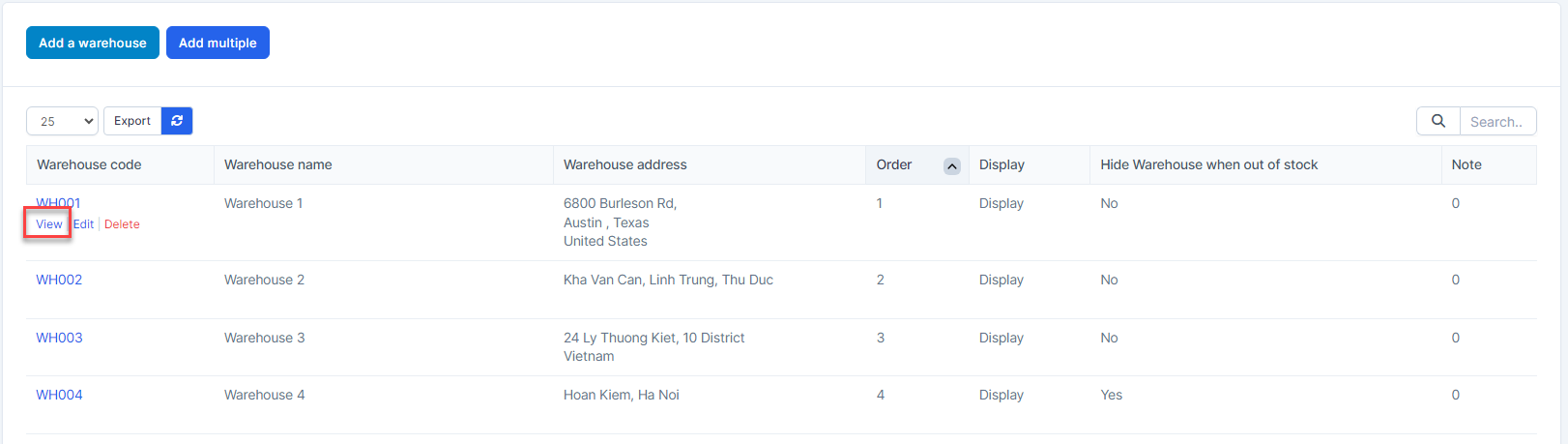
  • Step 2. Hover over the warehouse to see details and click View
download (10)

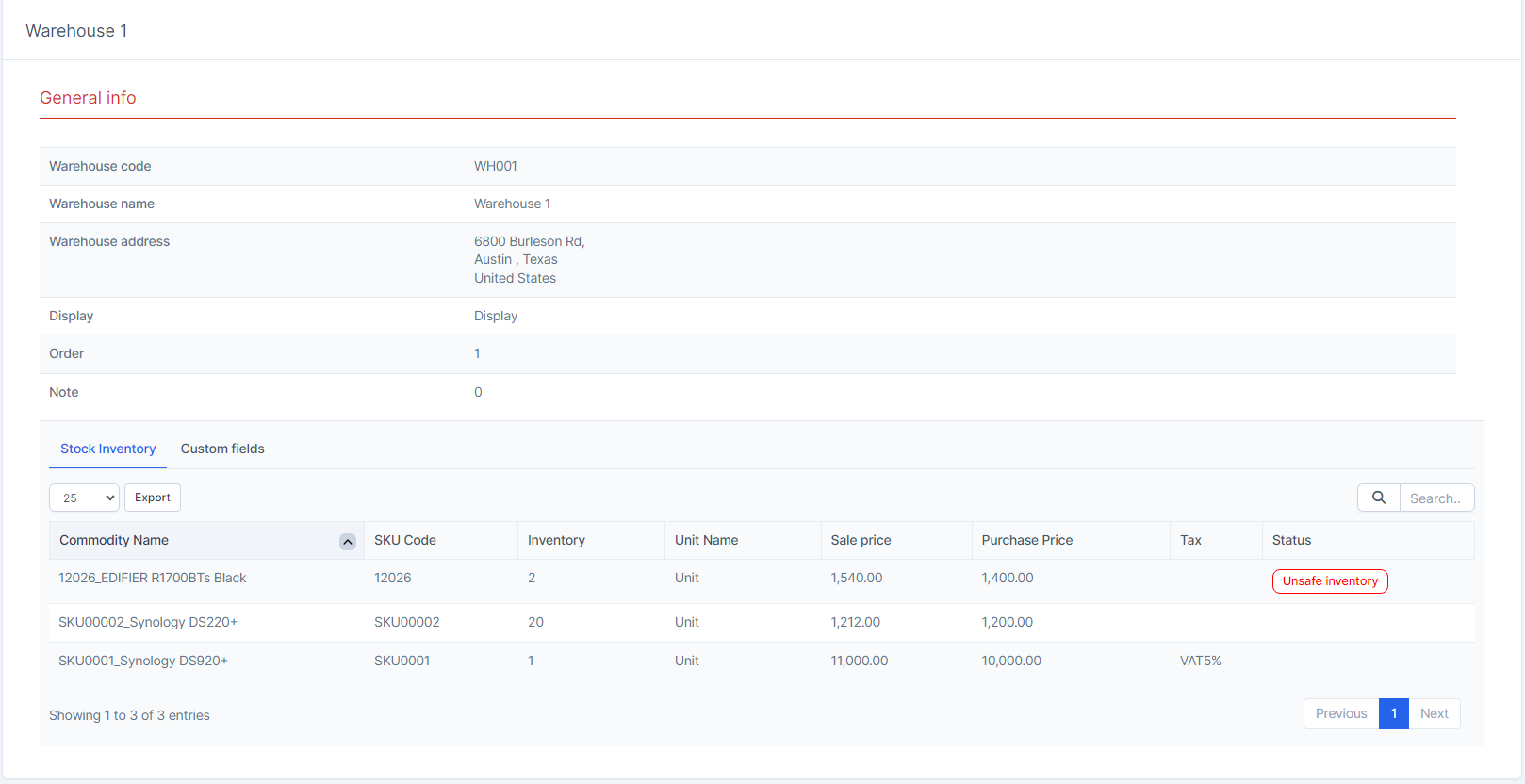
Status column: displays Unsafe inventory when the current inventory is less than the minimum inventory (configured in settings).

download (11)