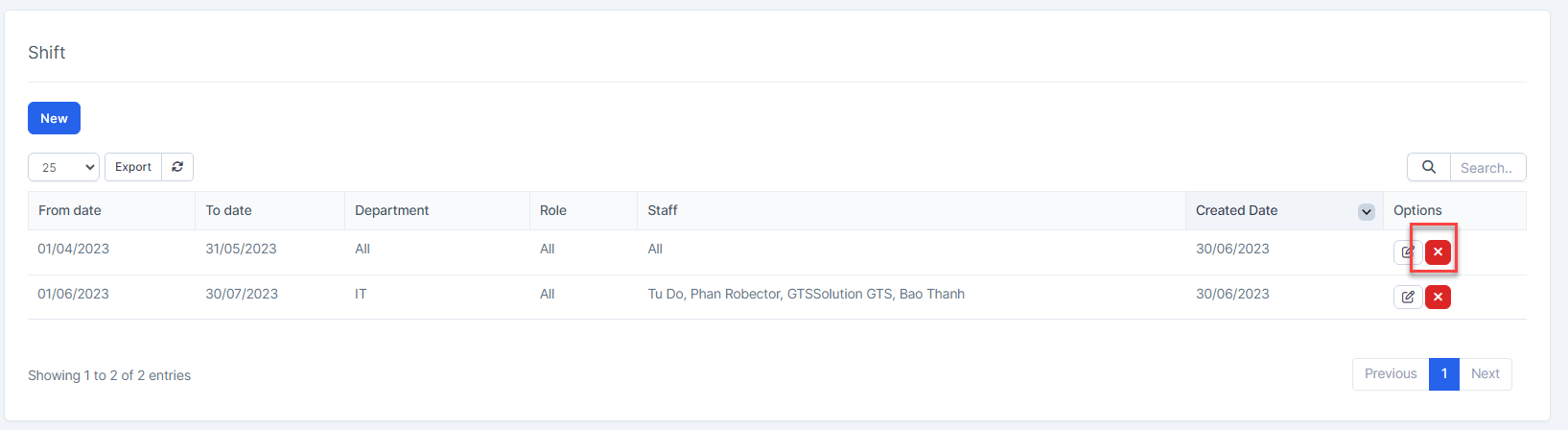
Step 1. Go to Shift Categories menu under Timesheets & Leave module from the left sidebar
Step 2. Click on the Add button
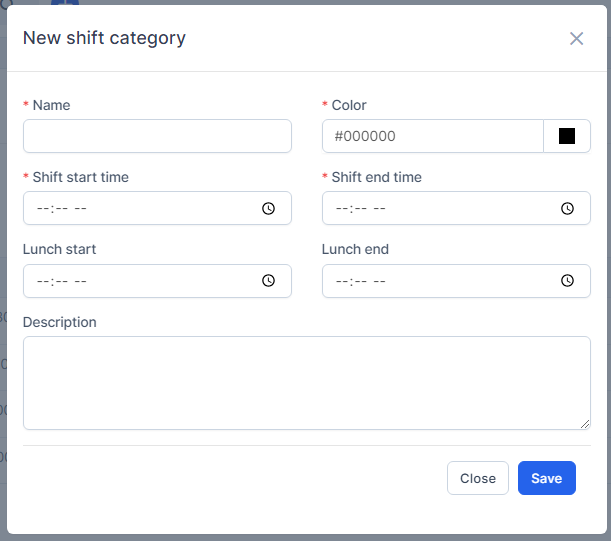
Step 3. In the New shift category popup, fill in the following details:
Name: The name of the shift category (e.g., Morning Shift, Night Shift, 24-Hour Shift)
Color: A color code used to visually represent this shift on Work shift table.
Shift start time: The time the shift begins. For a full-day shift, this could be set to 12:00 AM.
Shift end time: The time the shift ends. For a 24-hour shift, this should also be set to 12:00 AM
Lunch start: The time when the lunch break begins. This will be excluded from working hours calculation.
Lunch end: The time when the lunch break ends. The system will resume tracking working hours after this time.
Description: Additional notes or context about this shift category. For example: “24-hour on-call support shift”.
Step 4. Click on the Save button.
Edit Shift Type
To edit the details of an existing shift type:
Step 1. Go to Shift Categories menu under Timesheets & Leave module from the left sidebar
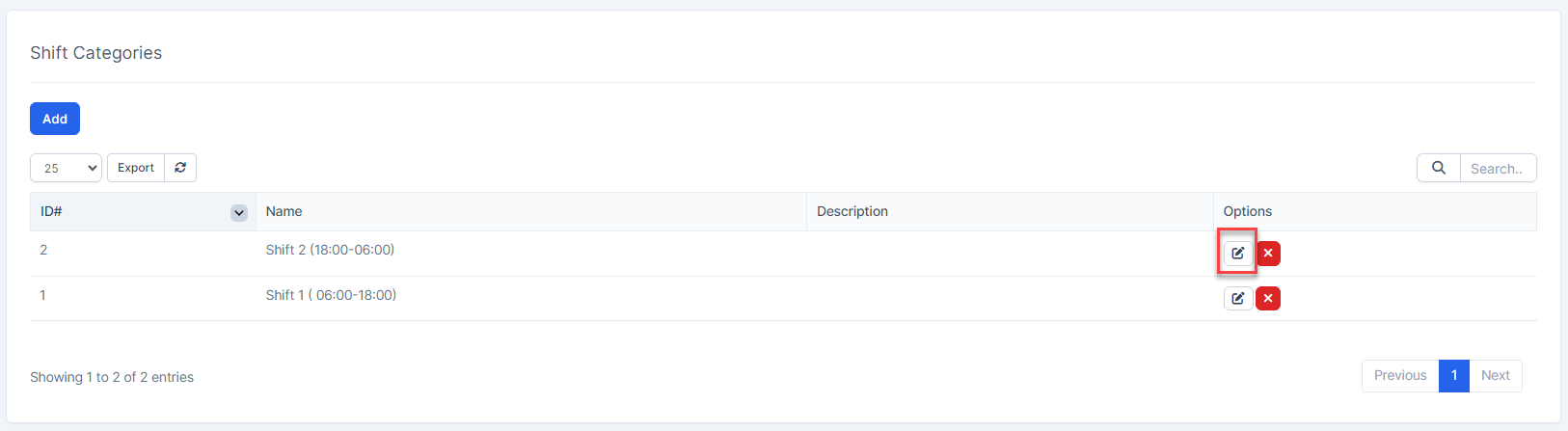
Step 2. Select the shift category need to be edited and click Edit button
Step 3. Make the necessary changes and click Save button
Delete Shift Type
If a shift catetory is no longer operational, you can delete it. To delete a shift type:
Step 1. Go to Shift Categories menu under Timesheets & Leave module from the left sidebar
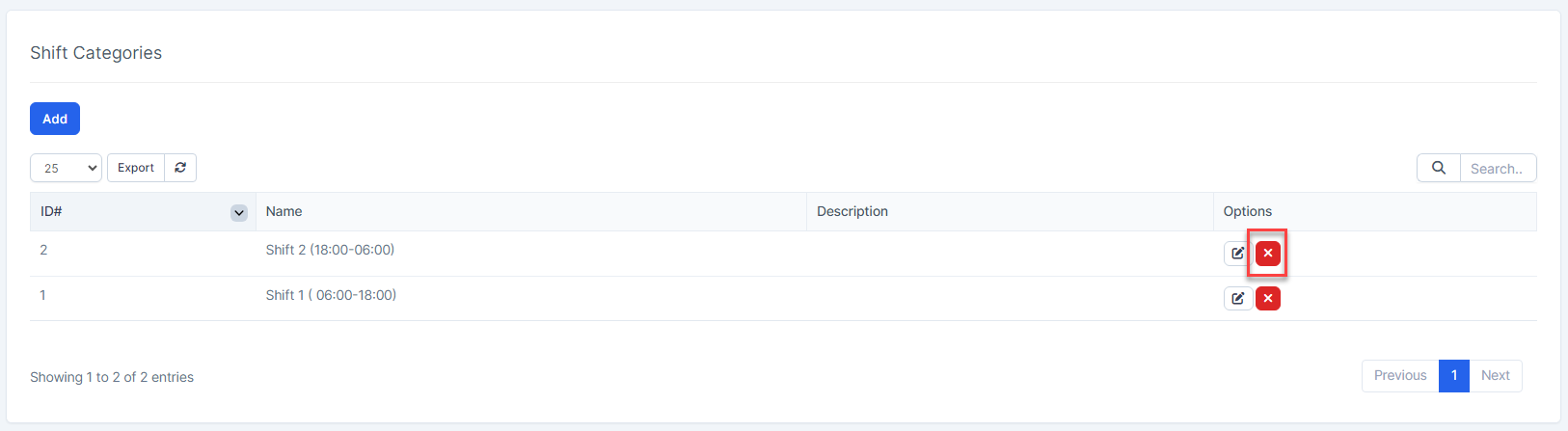
Step 2. Select the shift category need to be deleted and click Delete button
Step 3. Confirm your selection in the following pop-up. The shift category will be deleted.
Shopping Basket
We use cookies on our website to give you the most relevant experience by remembering your preferences and repeat visits. By clicking “Accept”, you consent to the use of ALL the cookies. However you may visit Cookie Settings to provide a controlled consent.
This website uses cookies to improve your experience while you navigate through the website. Out of these cookies, the cookies that are categorized as necessary are stored on your browser as they are essential for the working of basic functionalities of the website. We also use third-party cookies that help us analyze and understand how you use this website. These cookies will be stored in your browser only with your consent. You also have the option to opt-out of these cookies. But opting out of some of these cookies may have an effect on your browsing experience.