Sales Channel

unnamed
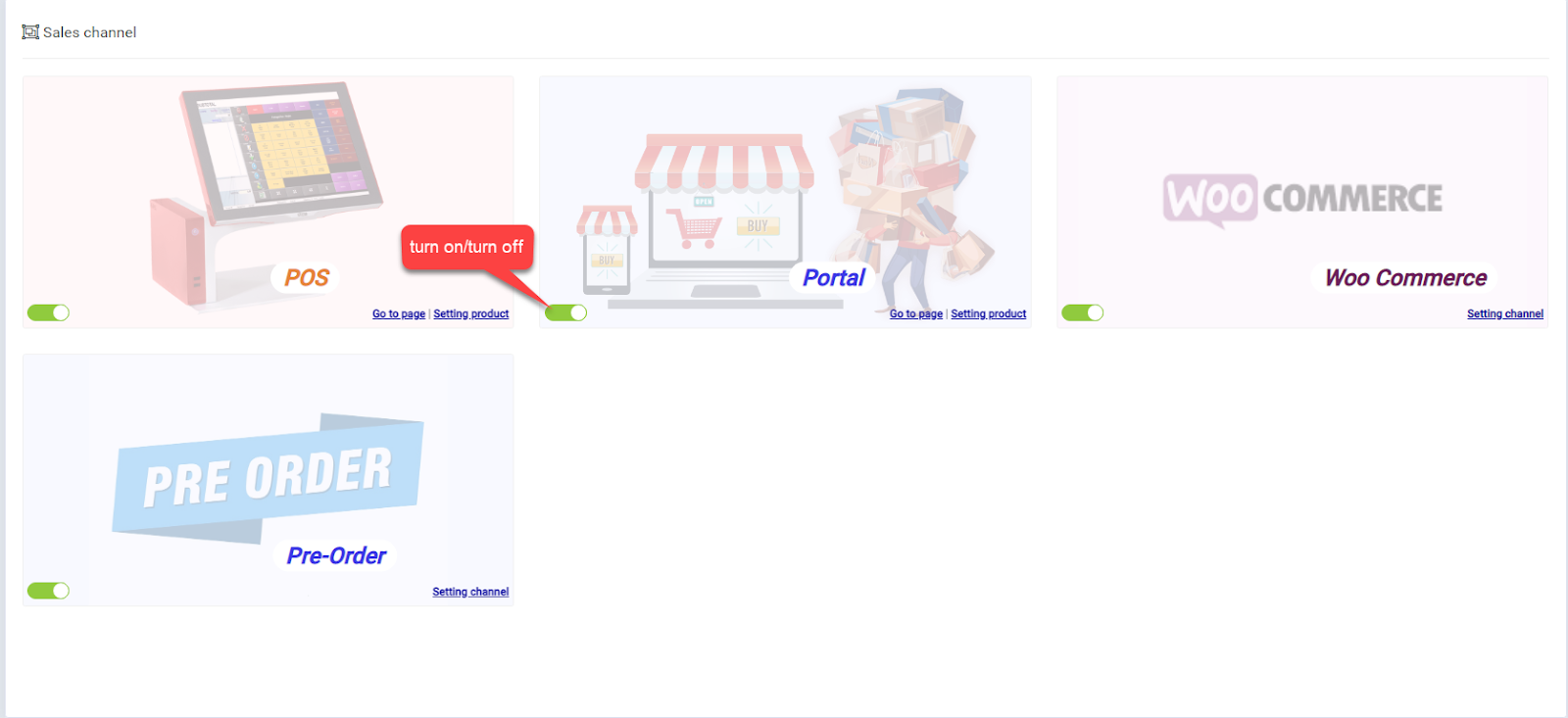
  • Turn on: can access the channel and setting the product for channel.
  • Turn off: can not access the channel

Portal

Add Product for Portal channel 

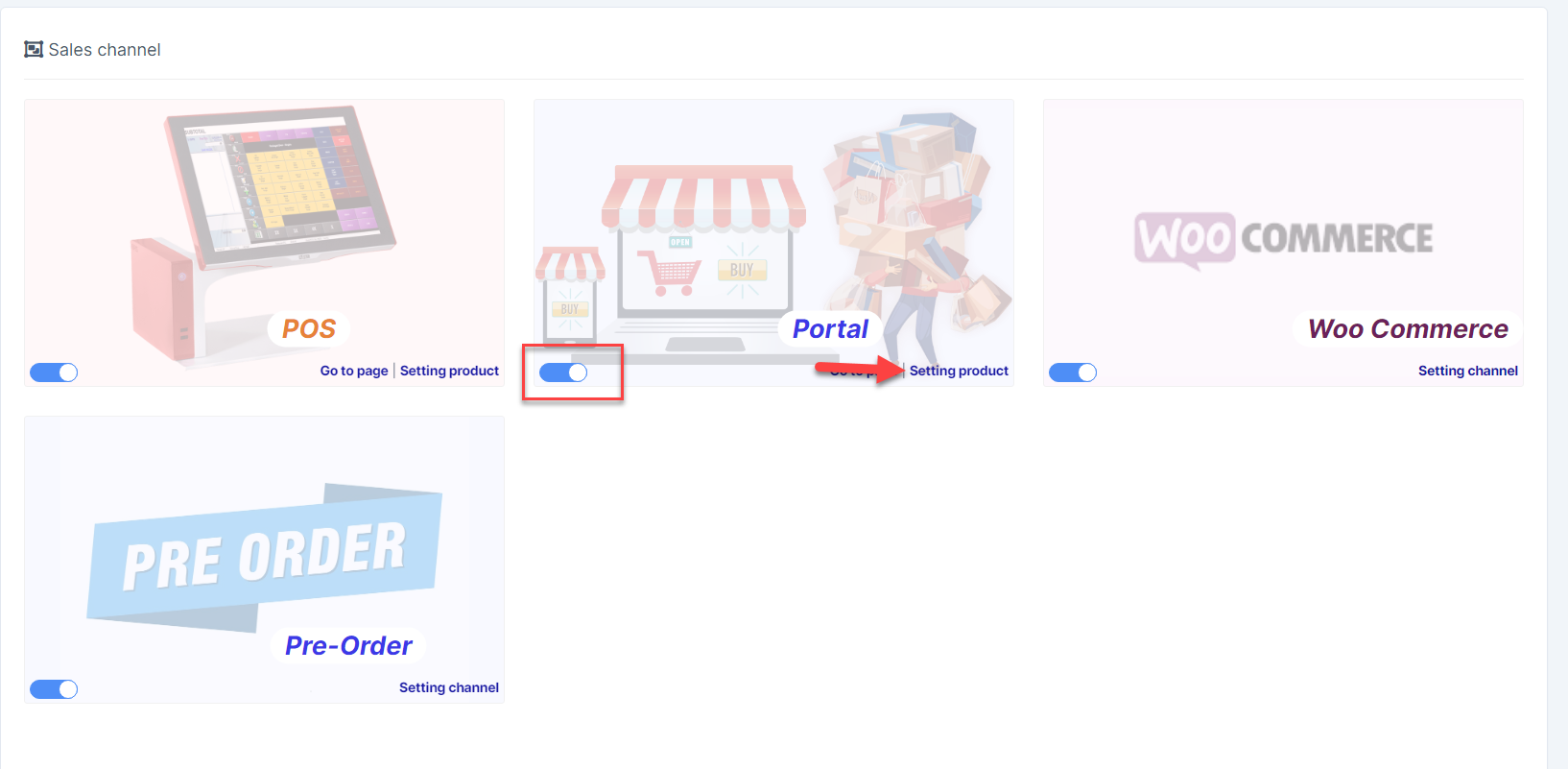
  • Step 1. Go to Sales channel menu -> Active Portal channel -> click Setting product
download (30)
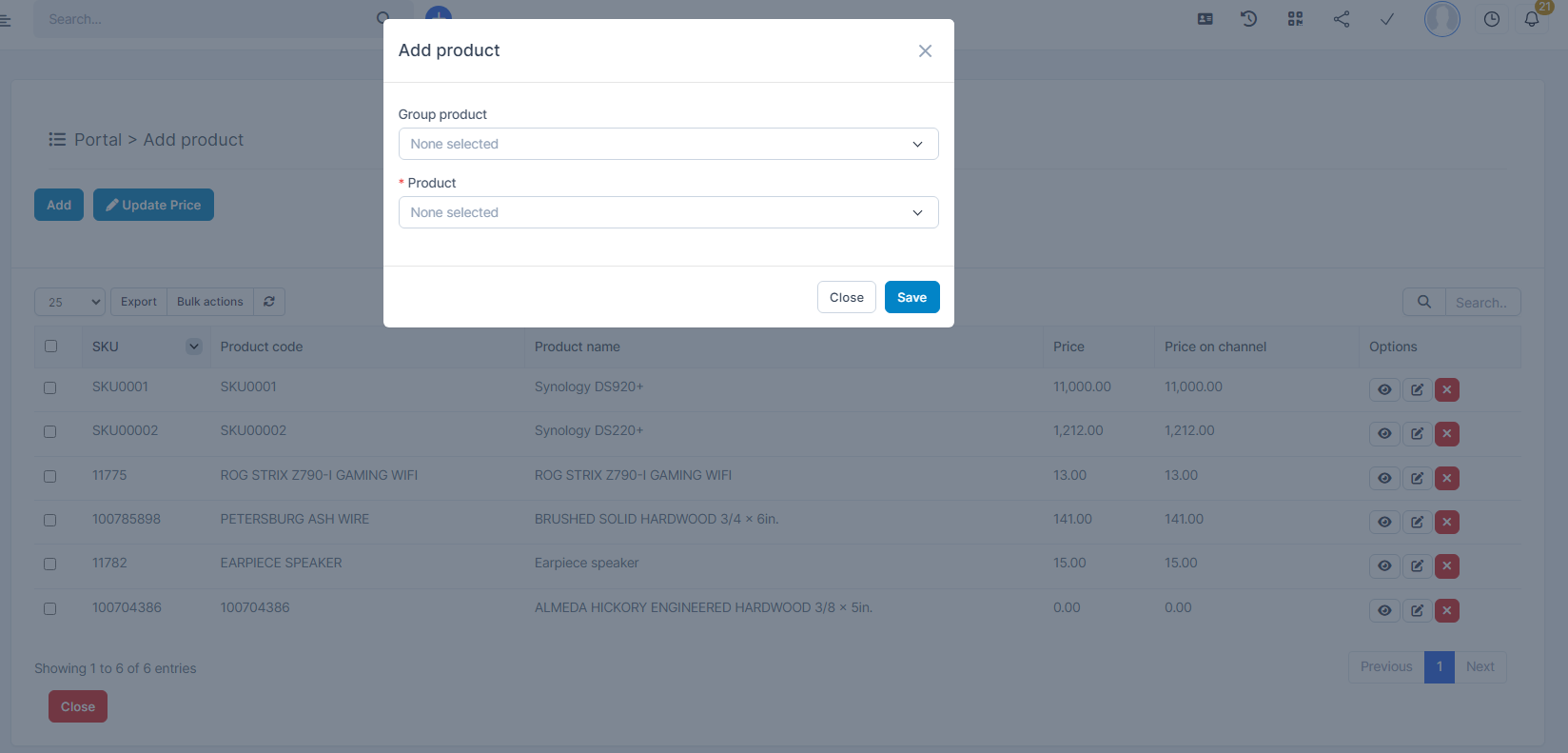
  • Step 2. Click Add button 
  • Step 3. In the Add product popup, fill in the requied details: 
download (31)
    1. Select the Group product 
    2. Select the Product 

Update Price

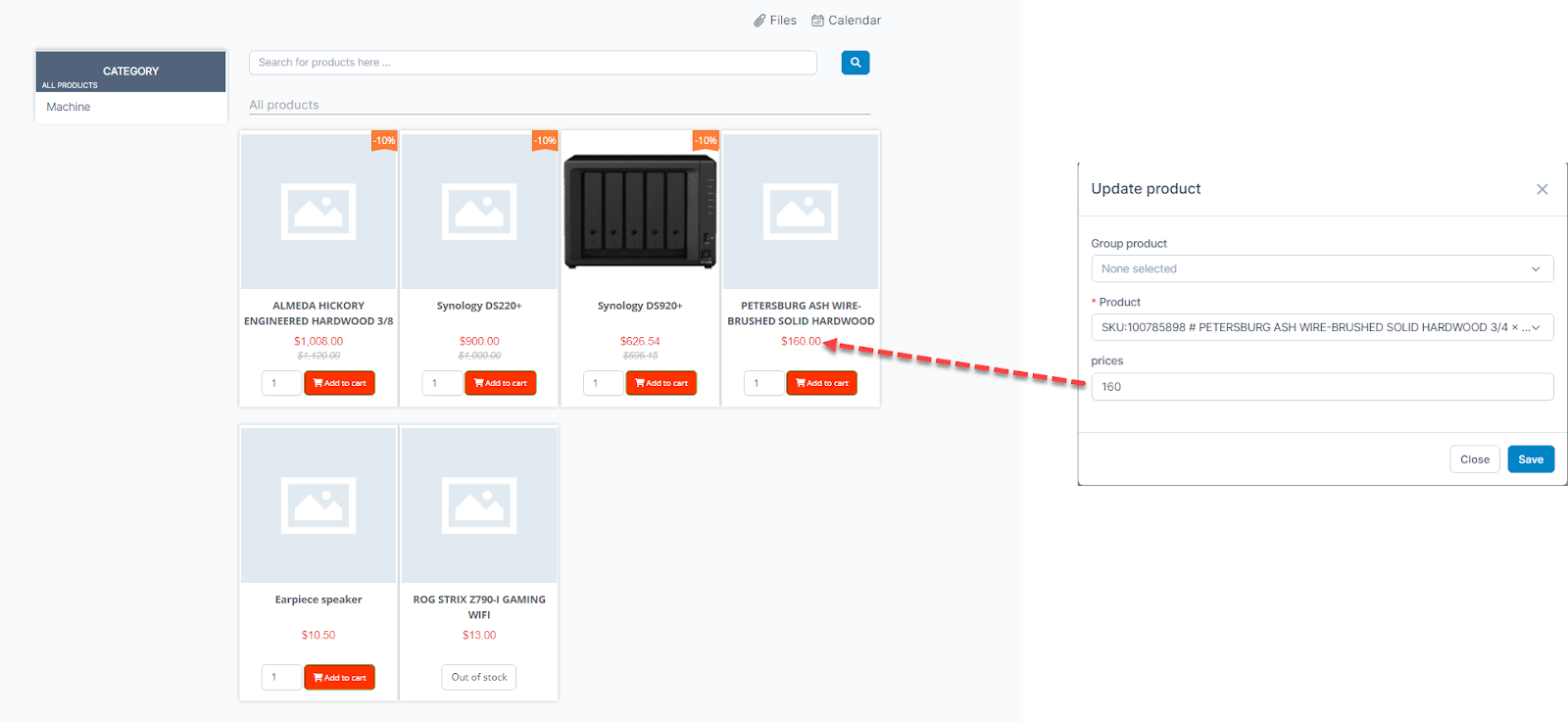
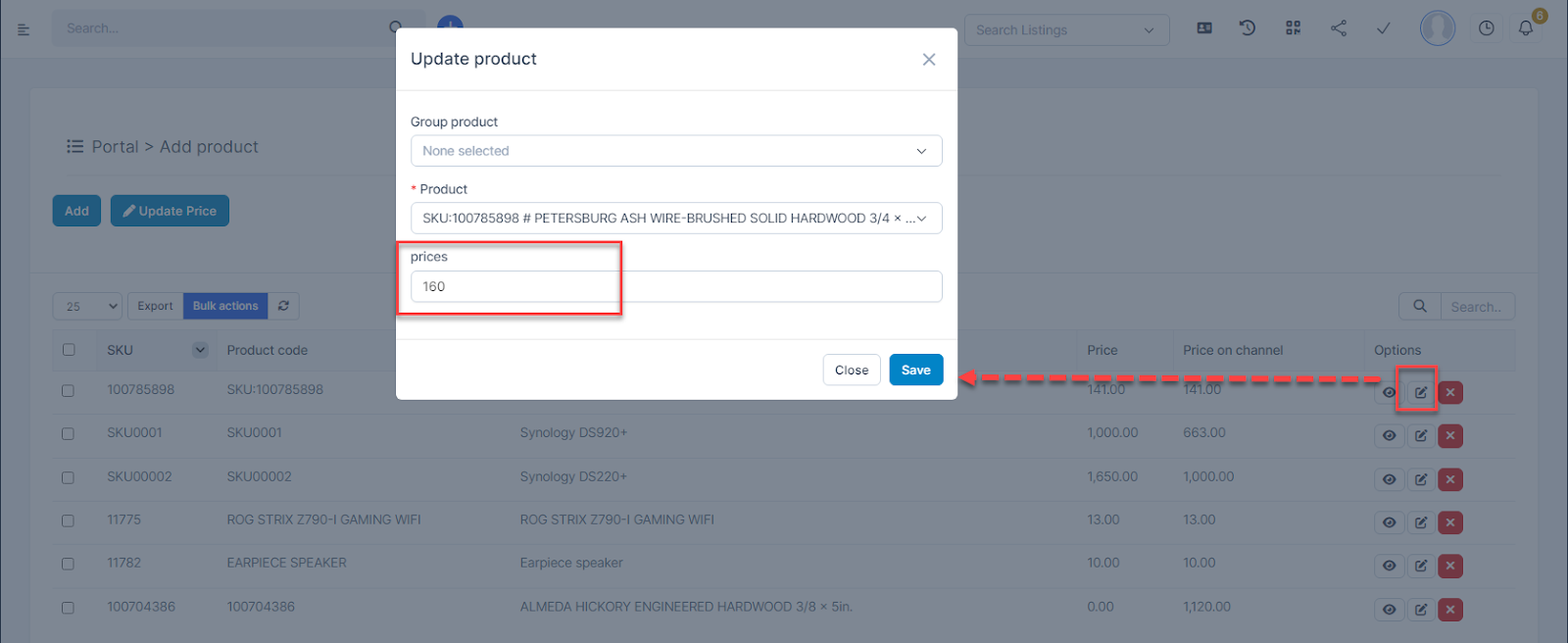
    If you want the selling price on the Portal to differ from the price declared in CRM:

      Select the item to be edited and click  -> change the prices -> Click Save button.
unnamed (1)
The changed price of this product is updated on the portal channel.
unnamed (2)

Delete item on Portal channel

    Deleted item does not show on Portal channel. 
    Method 1. Delete each item
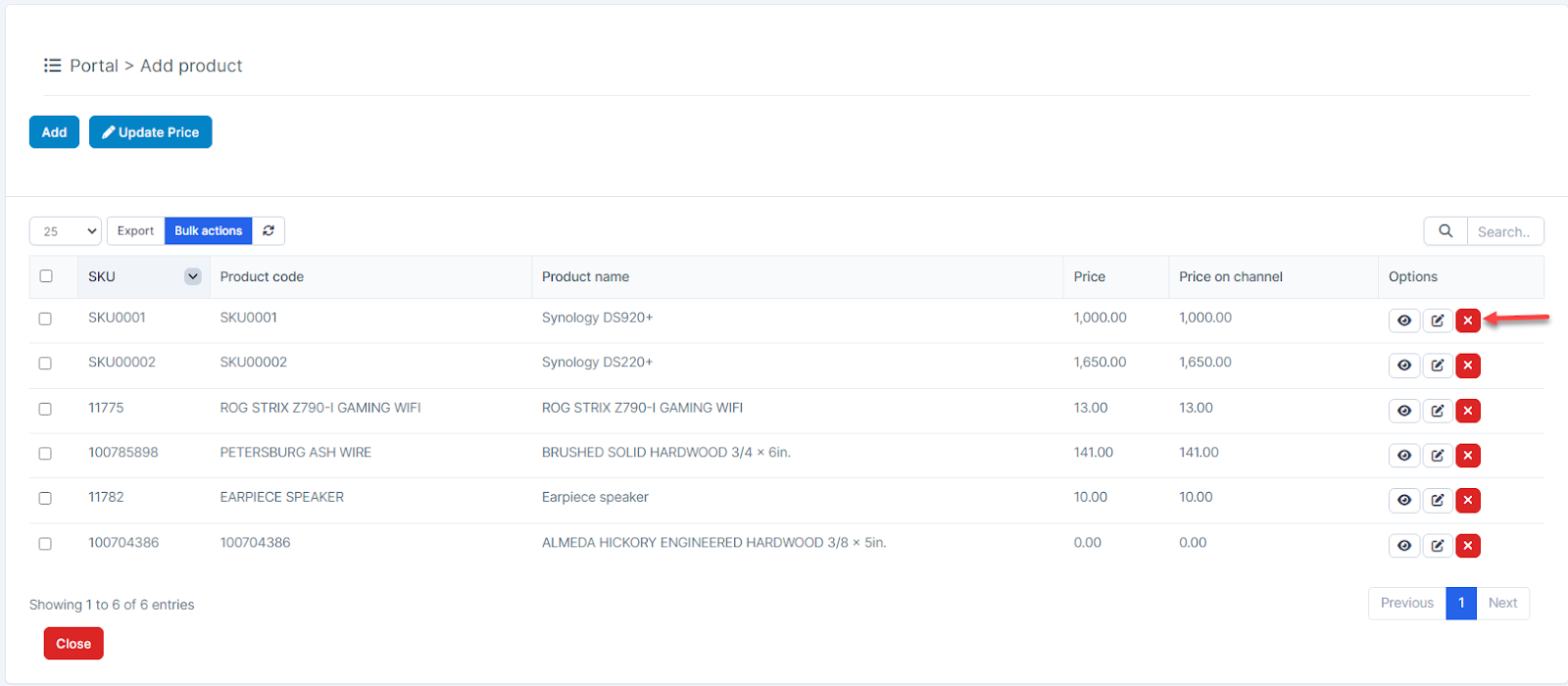
    Step 1. Select the item to delete -> click Delete button
unnamed (3)
     Step 2. Confirm your selection in the following pop-up. The item will be deleted.
download (32)

     Method 2. Delete multiple items at once


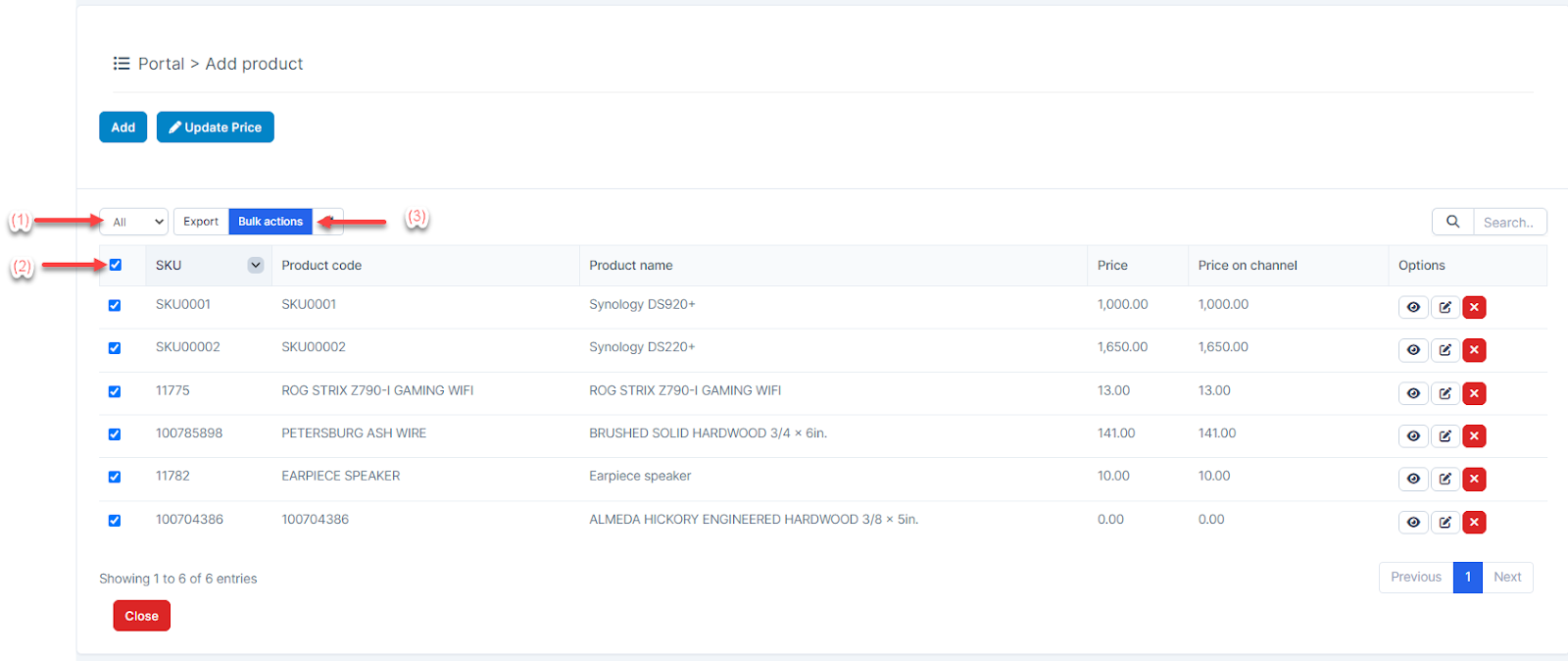
     Step 1. Select the function to display the number of items on 1 page -> select All -> check the top empty box or select the items to be deleted → Click Bulk action
unnamed (4)
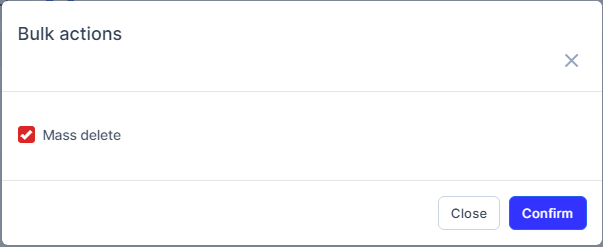
     Step 2. Then check Mass delete → Click Confirm
unnamed (5)

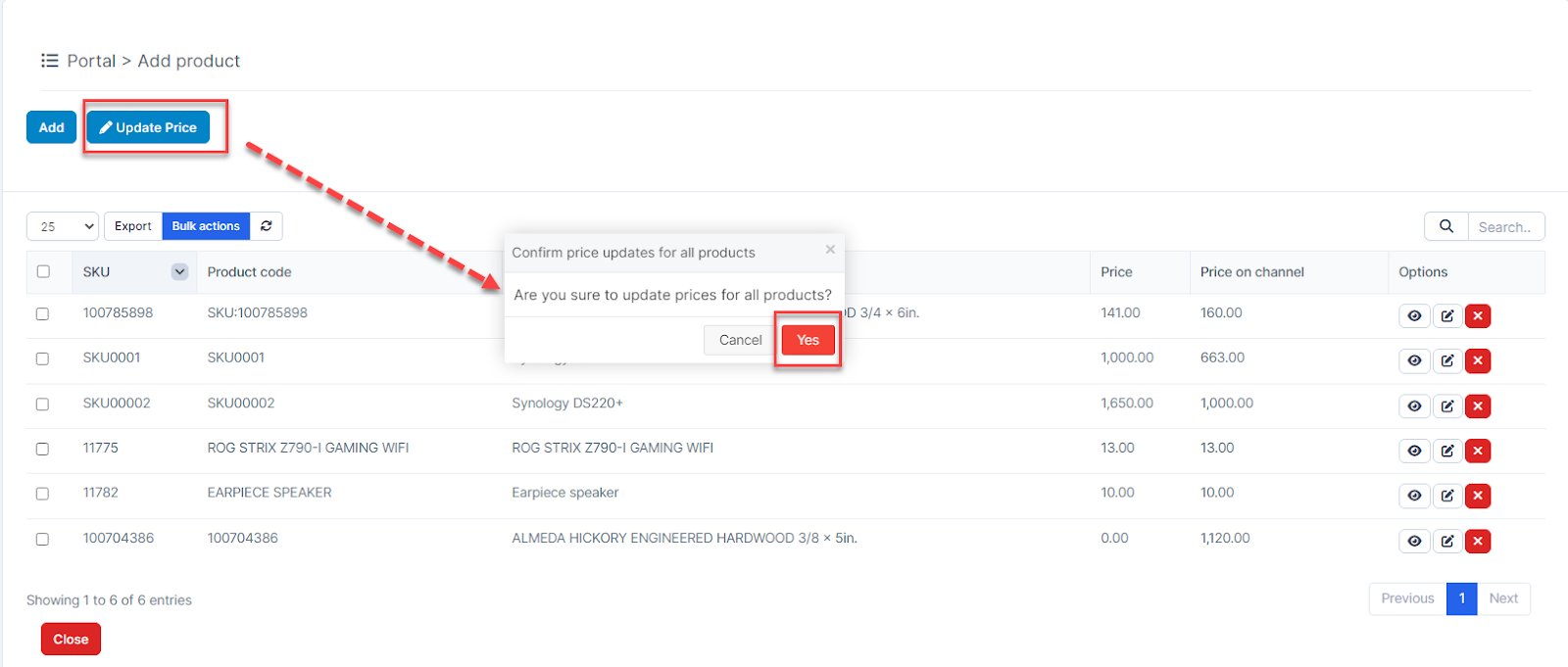
Update Price

     Used when the sale price of the item in the CRM changes and the user wants the price of the product on the Portal channel to be the same as the sale price in the CRM.

  • Step 1. Edit the selling price of these items in the modules: Inventory, Manufacturing or Sale-Items (if any)
  • Step 2. Go to the Portal channel -> click Update Price button→ Price column and Price per channel column are updated.
unnamed (6)