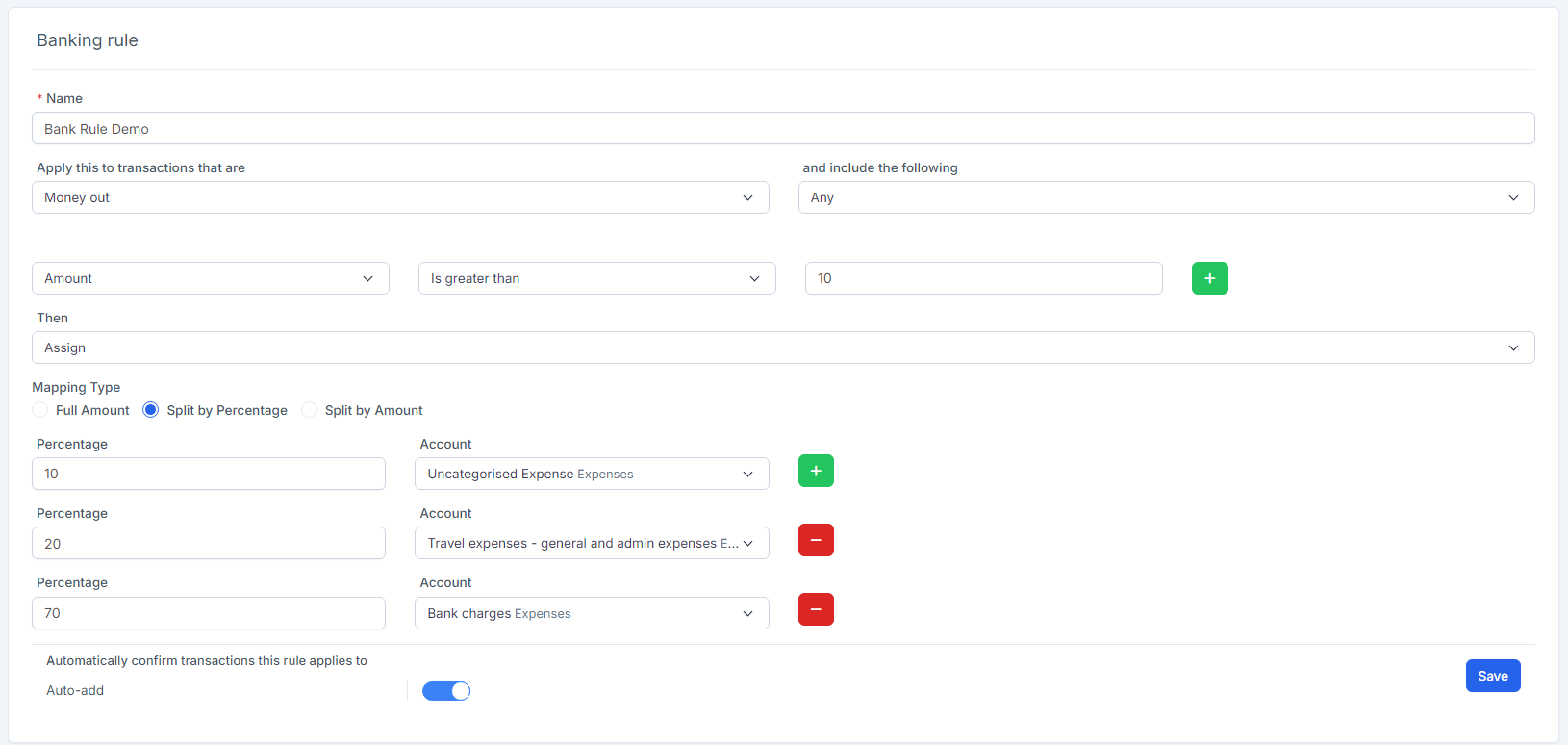
1. Name: enter a meaningful name for the rule.
2. Apply this to transactions that are: select either Money In (incoming funds) or Money Out (outgoing payments)
3.Condition type : choose whether Any or All of the conditions must be met
4. Filter Field: choose between Description or Amount for the field to be checked
5. Condition: Choose one of the following:
Contains
Doesn’t Containt
Is exactly
6. Value: eter the keyword, amount or value to be matched based on the condition above.
NOTE: The keyword in the rule must exactly match the transaction content and is case-sensitive. For example, if the transaction description is “CREDIT”, the keyword in the rule must also be “CREDIT”
7. Then: Choose one of the following action: Assign or Exclude. If you choose Assign, you will continue to select the fields in section 8, 9. If you choose Exclude, skip mapping if matched.
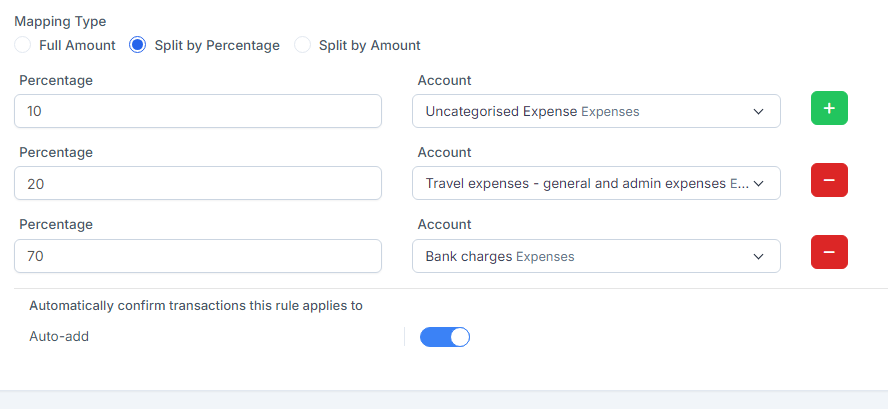
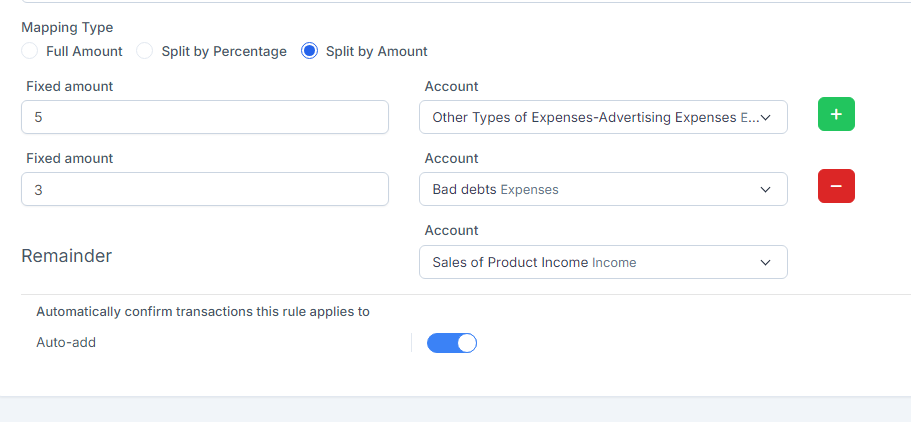
8. Mapping Type: If you selected Assign, choose hơ to allocate the amount
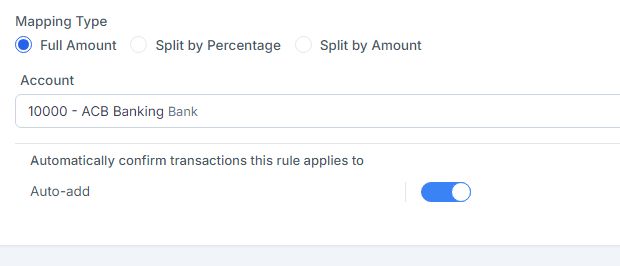
If you choose Full Amount, the entire amount will be mapped into 1 account